Accepting a Workspace Invitation
Welcome to Tidal Accelerator! This guide walks you through accepting your invitation, setting up your login, and accessing your workspace.
How workspace access works
In Tidal Accelerator, each customer environment runs in its own dedicated workspace with a unique web address:
https://[your workspace].tidal.cloud
When a workspace administrator invites you to collaborate, you receive an invitation email containing a secure, single-use activation link.
Step 1: Open your invitation email
Look for an email in your inbox from Tidal:
- From: Tidal Accelerator
<support@tidalcloud.com> - Subject: You have been invited to the [your workspace] workspace for Tidal
The email contains a button to activate your account and the URL of your workspace.
If you were invited with an Administrator role, your invitation link expires 72 hours after it is sent. Regular member invitations do not expire, but we recommend activating your account as soon as you receive the email.
Step 2: Choose your activation path
Click the button in the invitation email. The button you see depends on whether you already have a Tidal account.
Path A: You are new to Tidal Accelerator
If you do not yet have a Tidal Accelerator account:
-
Click ‘Create Your Account’ in the email. The Tidal Accelerator ‘Sign Up’ screen opens.
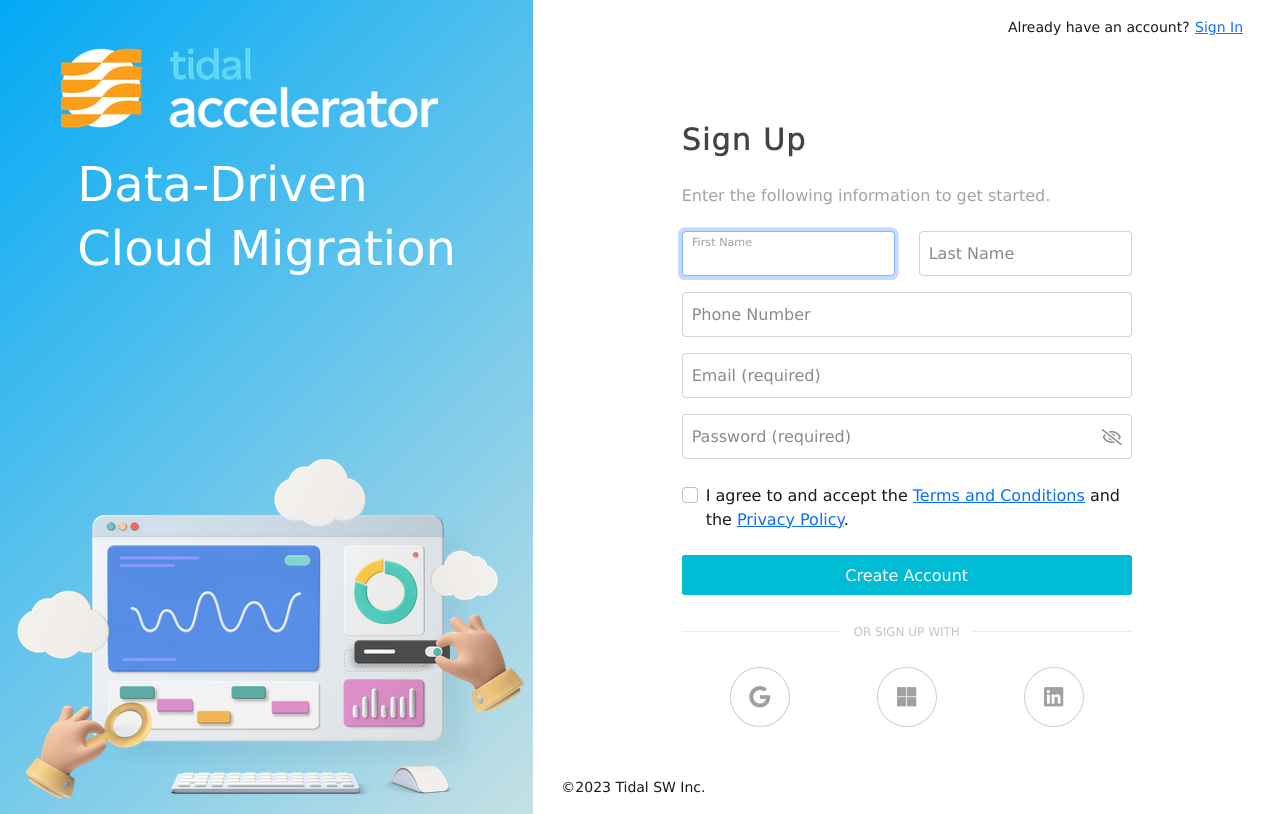
- Choose how you want to sign up:
- To use an existing Google, Microsoft, or LinkedIn account, click the matching icon under ‘Or sign up with’. Use this option if your organization signs in with Google Workspace or Microsoft Entra ID.
- To sign up with an email and password, enter your first name, last name, email address, and a password. Phone number is optional.
- Check the box to accept the Terms and Conditions and the Privacy Policy.
- Click ‘Create Account’.
-
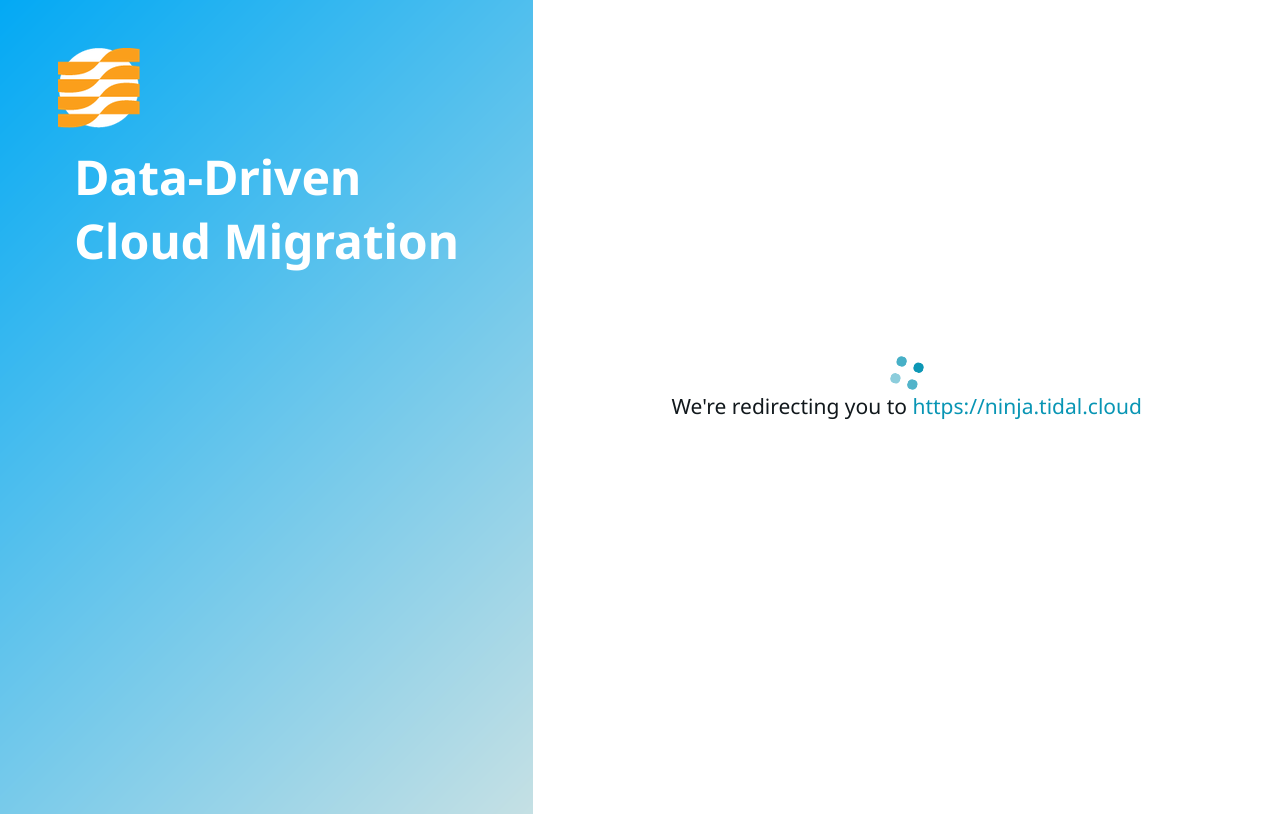
Tidal processes your invitation and redirects you to your workspace.
-
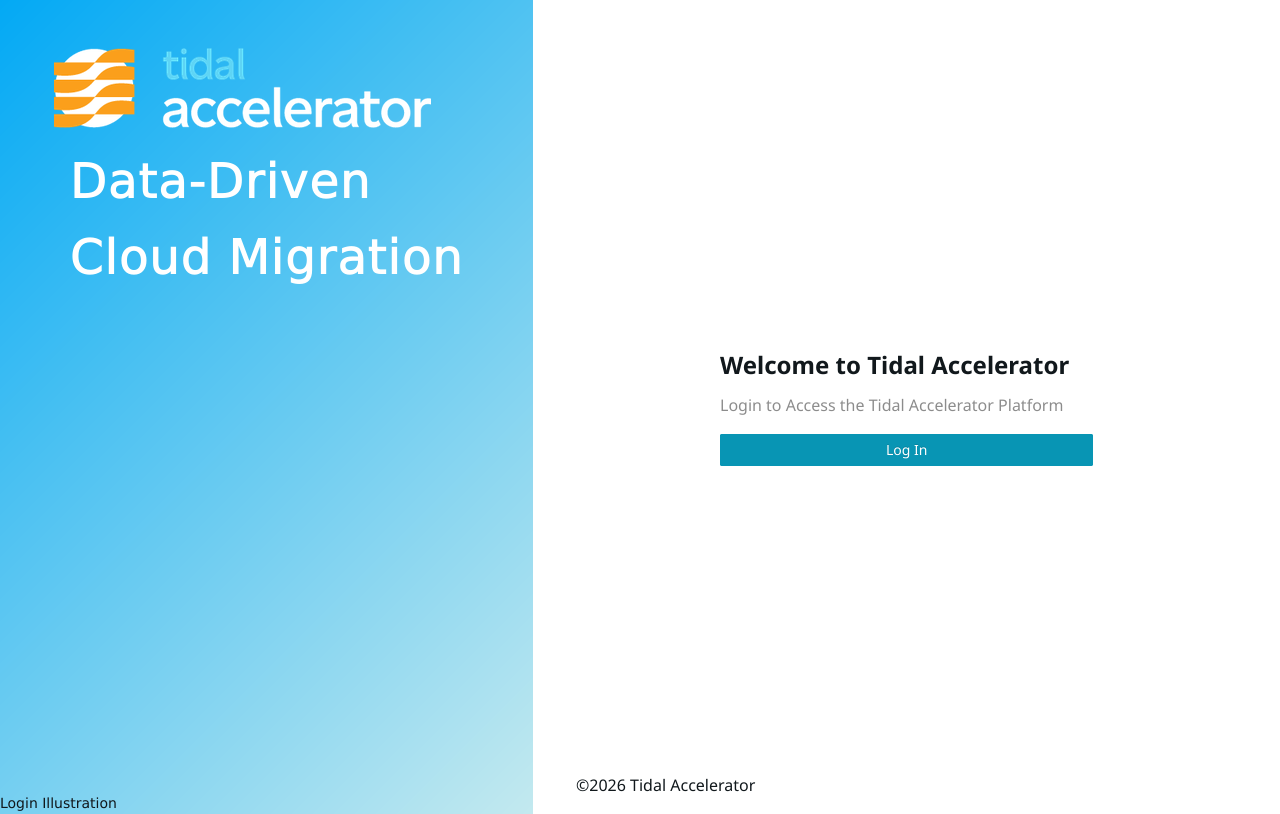
On the ‘Welcome to Tidal Accelerator’ screen, click ‘Log In’.
-
You land on the ‘Projects’ page of your workspace at
https://[your workspace].tidal.cloud.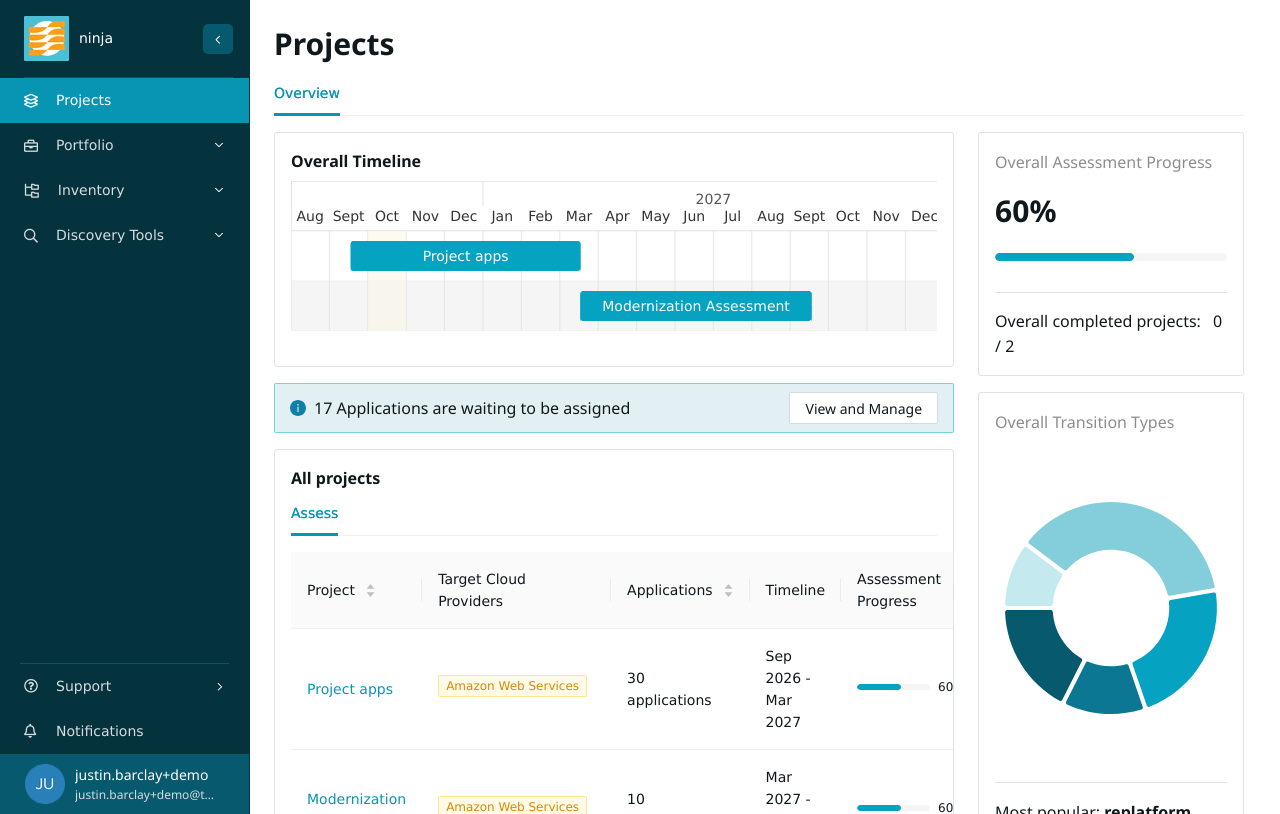
Sign up with the same email address that received the invitation. If you use a different address or a different Google or Microsoft account, Tidal cannot match you to the invitation and you will not have access to the workspace.
Path B: You already have a Tidal account
If you are already registered with Tidal (for example, because you belong to another workspace):
-
Click ‘Sign in to Workspace’ in the email. The ‘Log In’ screen opens. If you see the ‘Sign Up’ screen instead, click ‘Sign In’ in the top right corner.
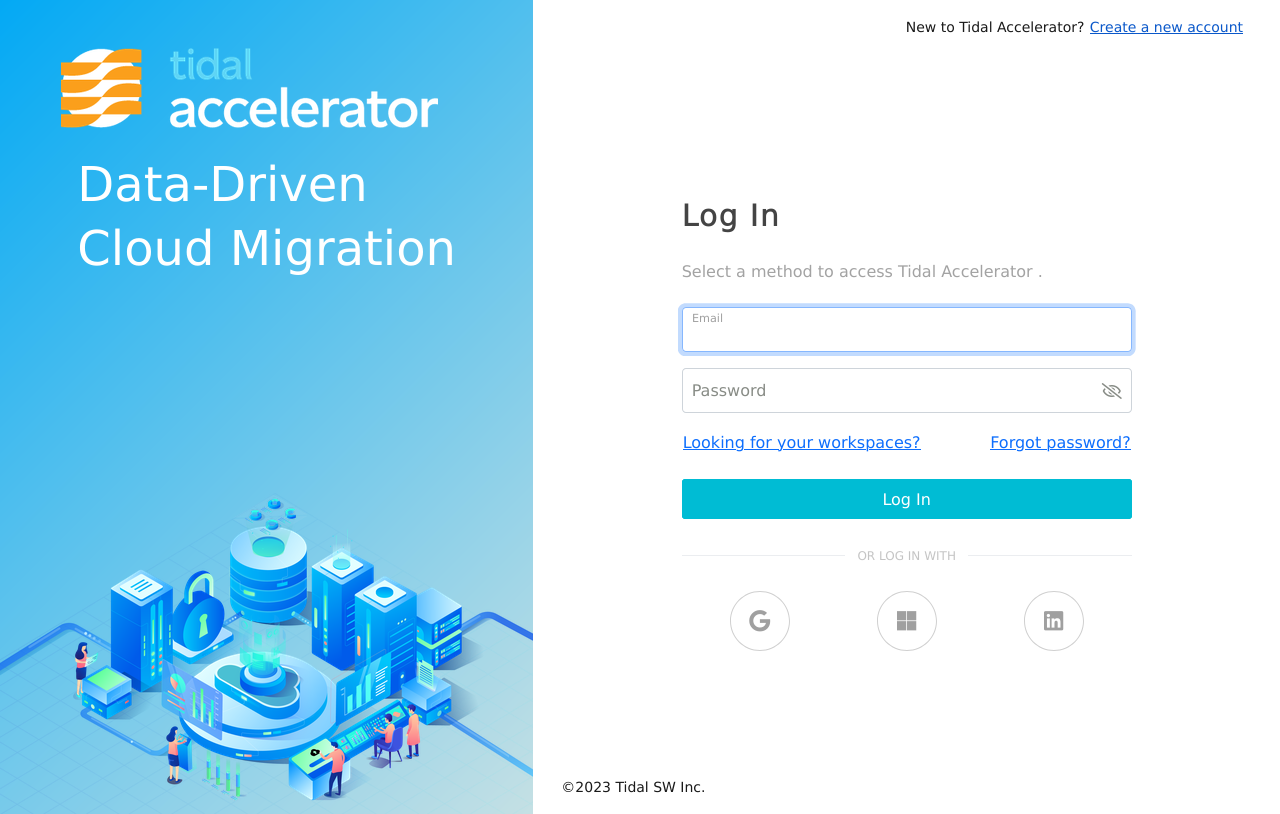
- Enter your email address and password, or click the Google, Microsoft, or LinkedIn icon to log in with that account.
- Tidal links your existing account to the new workspace with the role your administrator assigned, and takes you to your workspace.
Returning to your workspace
Each workspace has its own address, so you do not need the invitation link again after your first login.
Bookmark your workspace URL
Once you are logged in, bookmark your workspace URL (https://[your workspace].tidal.cloud) in your browser for easy access.
Find your workspace URL
If you forget your workspace URL:
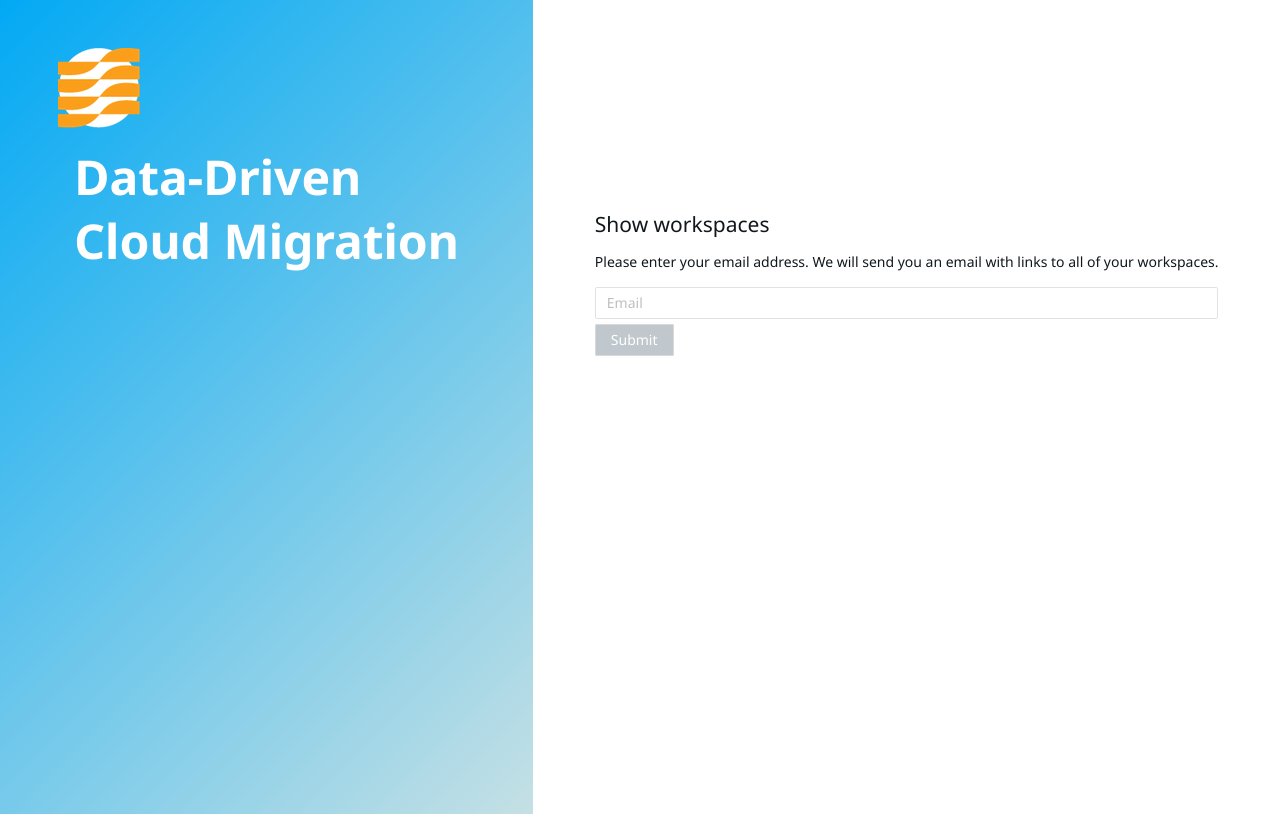
- Go to the Tidal Accelerator ‘Log In’ screen and click ‘Looking for your workspaces?’.
-
Enter your email address and click ‘Submit’. Tidal emails you links to all of your workspaces.
You can also find your workspace URL near the bottom of your original invitation email, or ask your workspace administrator.
Troubleshooting
I didn’t receive an invitation email
- Check your spam, junk, or promotions folder for emails from
support@tidalcloud.com. - Some corporate email filters quarantine external invitation emails. Ask your IT administrator to allowlist
tidalcloud.com. See Why am I not receiving verification or invite emails? for more detail. - Ask your workspace administrator to go to ‘Settings’ > ‘Users’ > ‘Invites’ and click ‘Resend’ next to your email address.
The link says “Invite has expired”
Administrator invitations expire after 72 hours for security. Ask your workspace administrator to resend the invitation. You will receive a new email with a fresh 72-hour link.
“No invite token found” or an error when clicking the link
Activation links are single-use. Once you have completed registration, the link no longer works. Go directly to https://[your workspace].tidal.cloud and log in instead.
“403 Forbidden” or “You do not have access to the workspace”
- Make sure you are logging in with the account you used to accept the invitation. If you signed up with Google, Microsoft, or LinkedIn, log in with that same option.
- Ask your workspace administrator to confirm that you have been added to the workspace.
Forgot your password
On the ‘Log In’ screen, click ‘Forgot password?’ and follow the instructions to reset it.
Need more help?
If you still cannot access your workspace, contact your workspace administrator or email Tidal support.